🎨 Canva Templates

Design Your Perfect Collage

Start from one of our ready-made templates. Swap the background, personalize the text, and upload it to your event — in minutes.

3 simple steps
1

Pick a template below

Choose the Strip (2"×7") or the 5"×7" layout. Click "Open in Canva" to get your editable copy.

2

Customize in Canva

Change the background image, adjust colors, move the photo frames, edit the text style. Keep all 4 photo slots and the legend text.

3

Export & upload

Download as JPG. When creating your event, upload it as your collage background. Done!

4

Guests pick their favorite

Upload 2+ backgrounds and guests choose the one they love most before their photo session.

What you can (and can't) change

✅ You can change

  • Background image or color
  • Background opacity / filters
  • Font style, size, and color of the legend text
  • Position of the legend text block
  • Position of the photo frames (slightly)
  • Frame border color, style, or corner radius
  • Add decorative elements (flowers, confetti, borders…)
  • Add a logo or watermark

🚫 Do NOT delete

  • The 4 gray photo placeholder boxes — the app places real photos here automatically
  • The "Leyenda del evento" text block — this is replaced with your event legend
  • The overall layout structure (portrait for Strip, landscape for 5"×7")

💡 Tip: The gray boxes are just reference markers. In the final collage, real selfies will fill those exact positions. Keep them where they are so the photos land in the right place.

Exact Canva dimensions
🗒️

Strip

2" × 7"
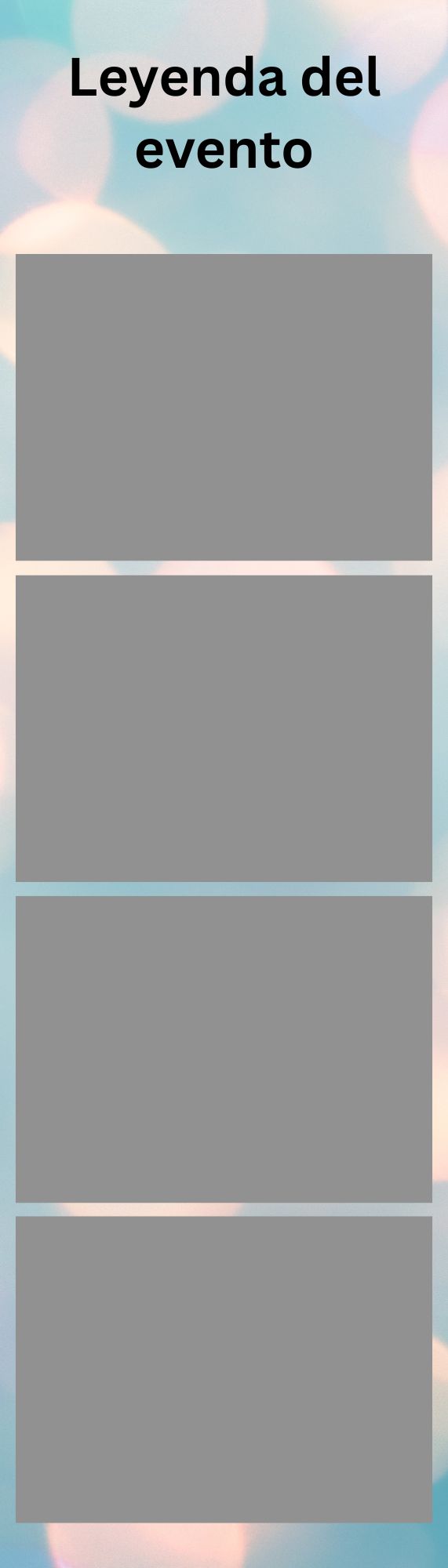
600 × 1800 px  ·  300 dpi

Portrait orientation. Legend at top (~15% height). 4 equal photo slots stacked vertically.

🖼️

5"×7" Landscape

7" × 5"
2100 × 1500 px  ·  300 dpi
LEGEND

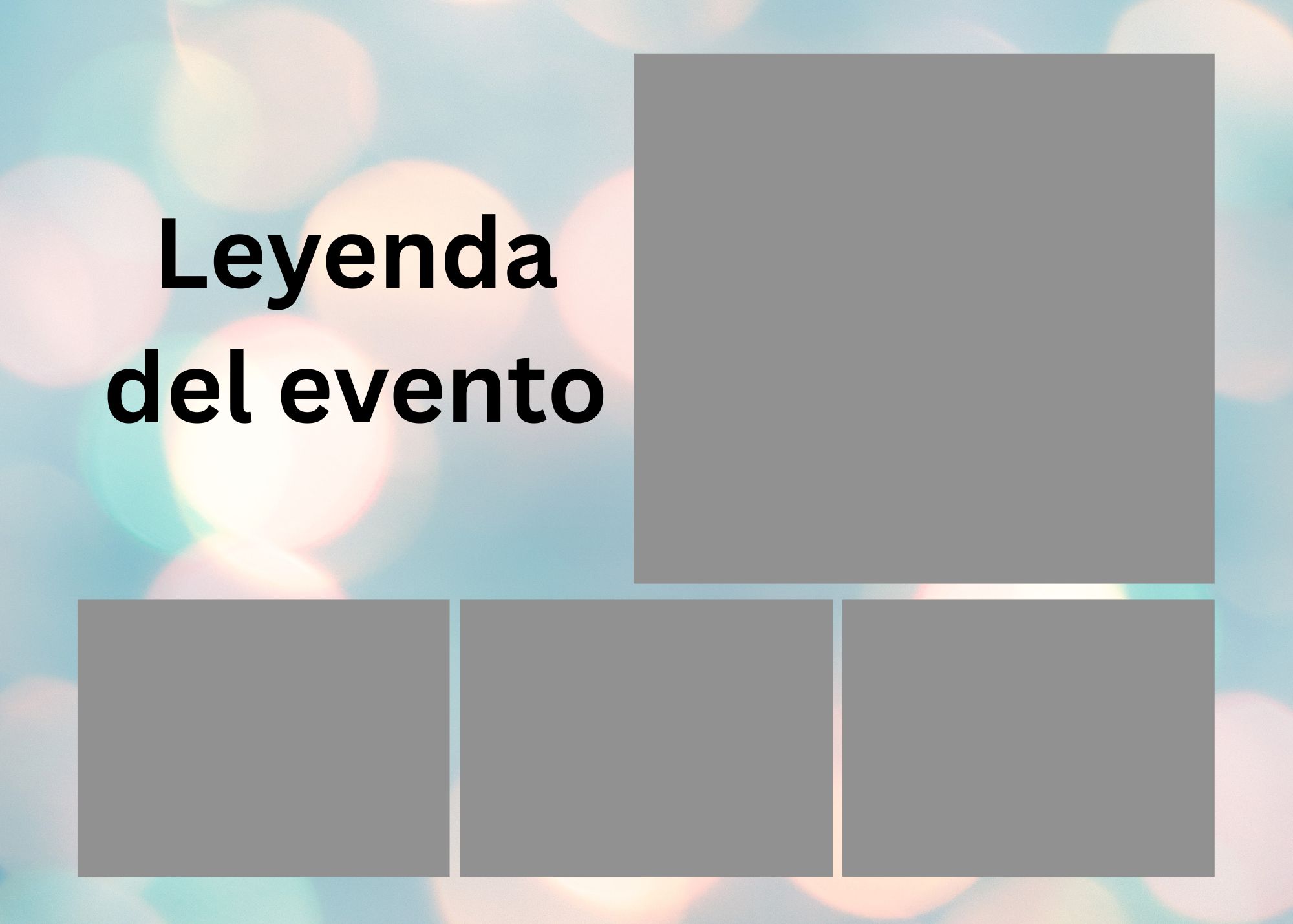
Landscape orientation. Legend on left (38% width). 1 large photo top-right + 3 small photos bottom-right.

Pick your style

All templates already have the correct dimensions and photo placeholders. Just open, customize, download, and upload.
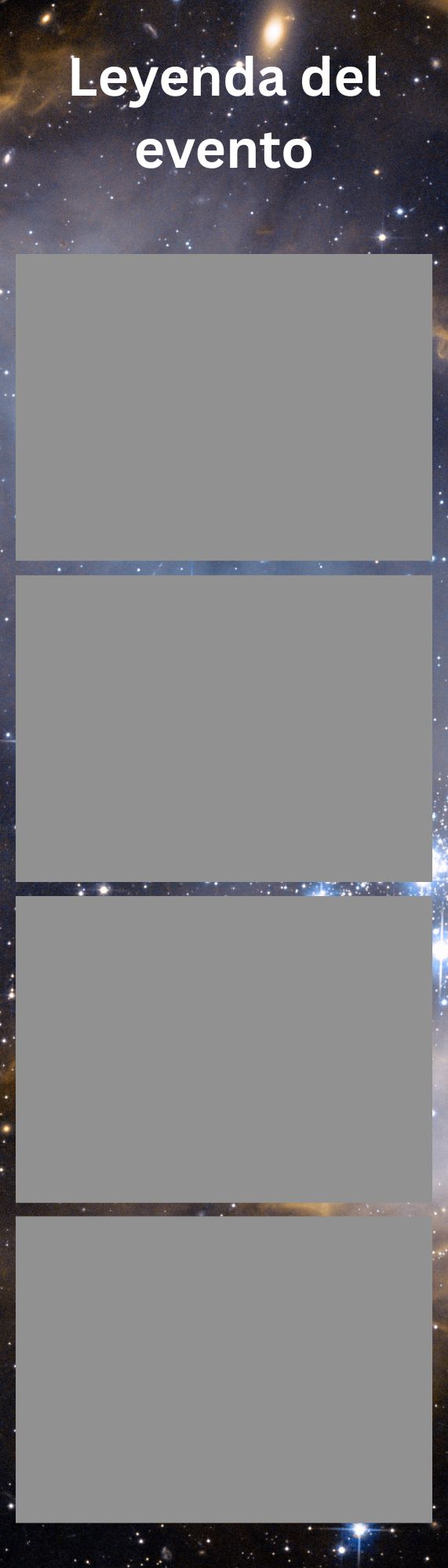
Strip template 1
#1
Bokeh Blue
Open in Canva →
Strip template 2
#2
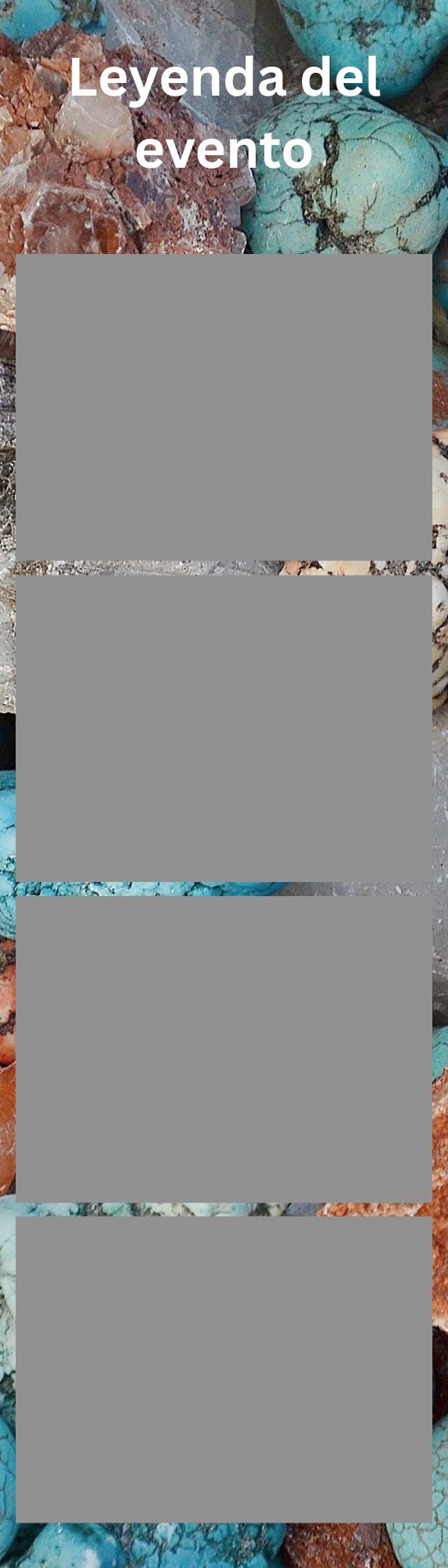
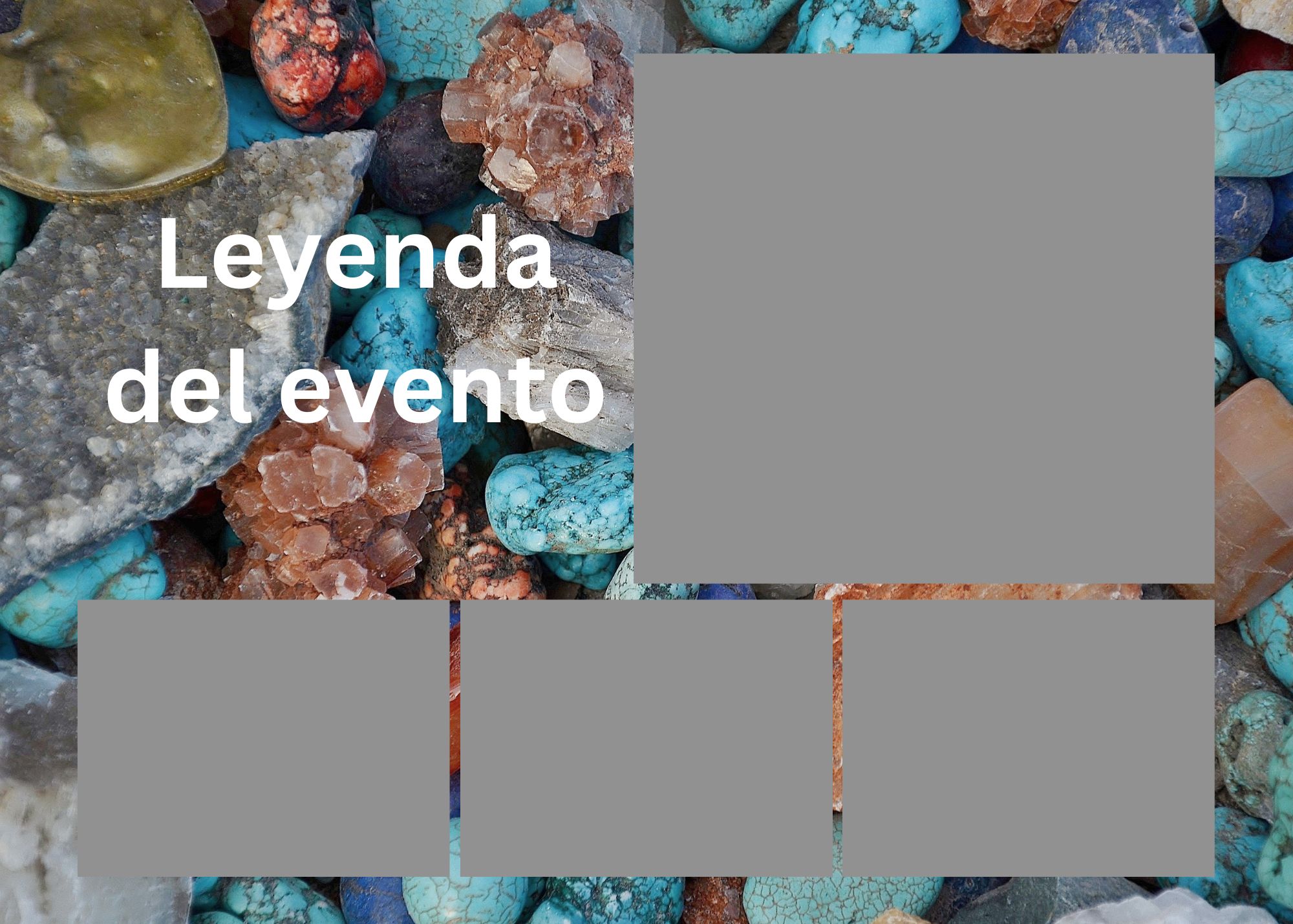
Turquoise Stones
Open in Canva →
Strip template 3
#3
Strip template 4
#4
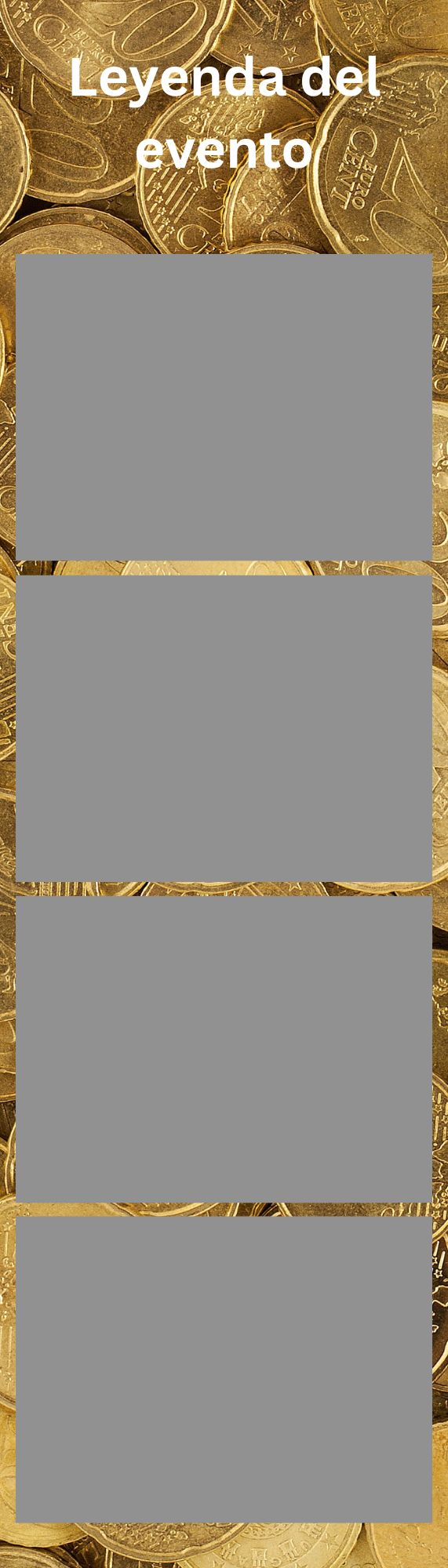
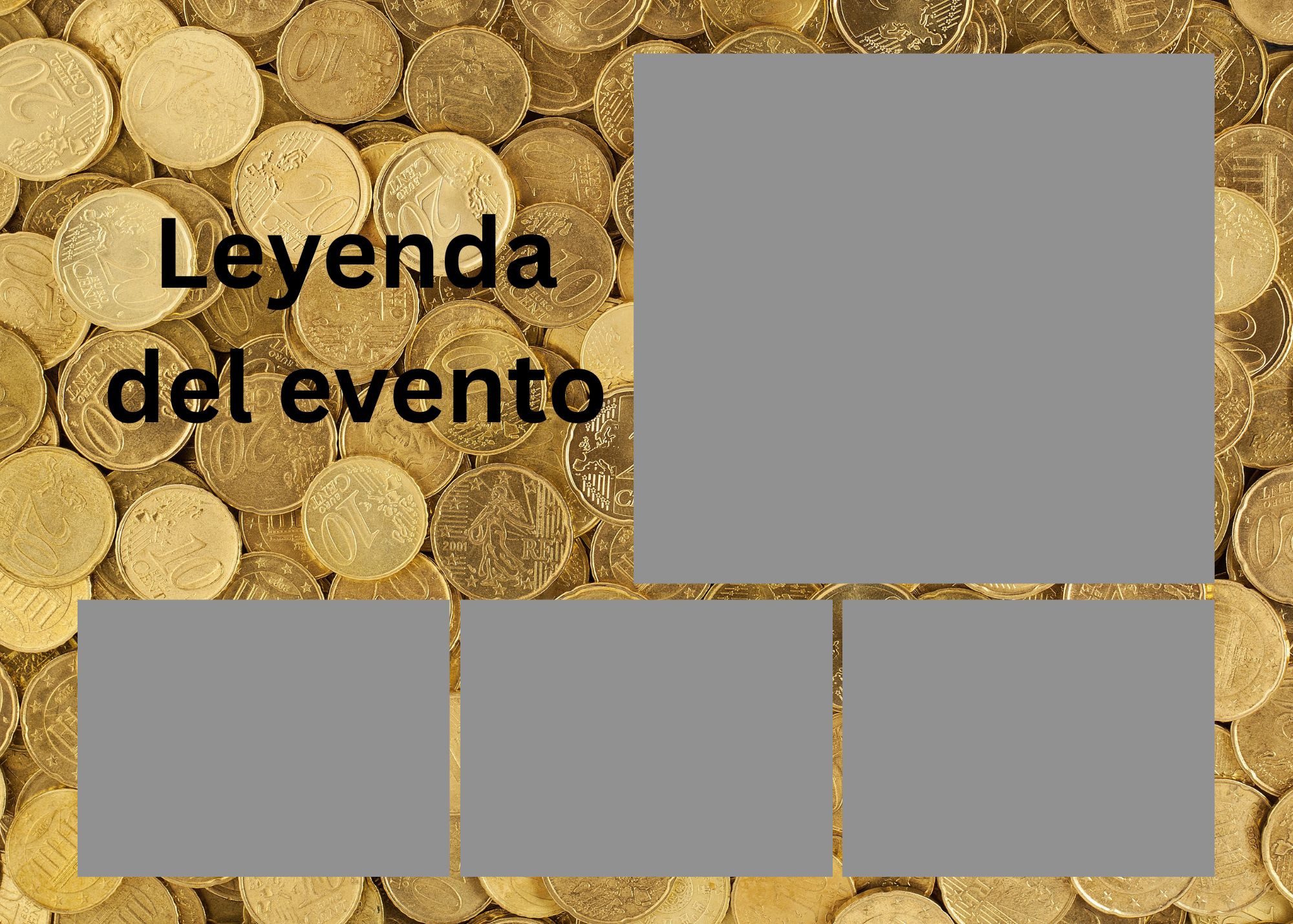
Gold Coins
Open in Canva →
Strip template 5
#5
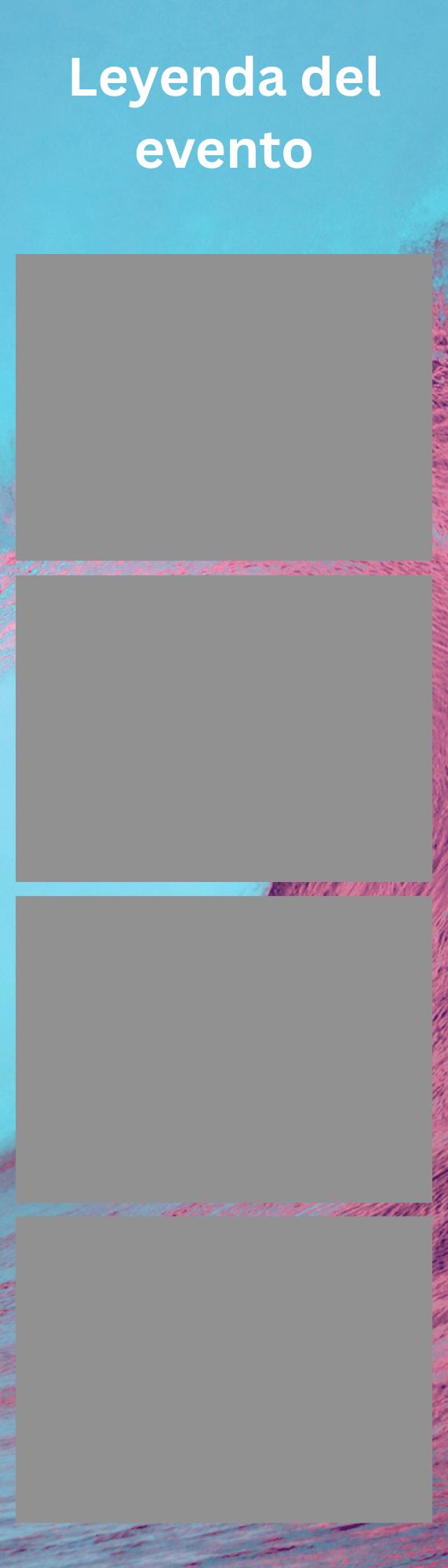
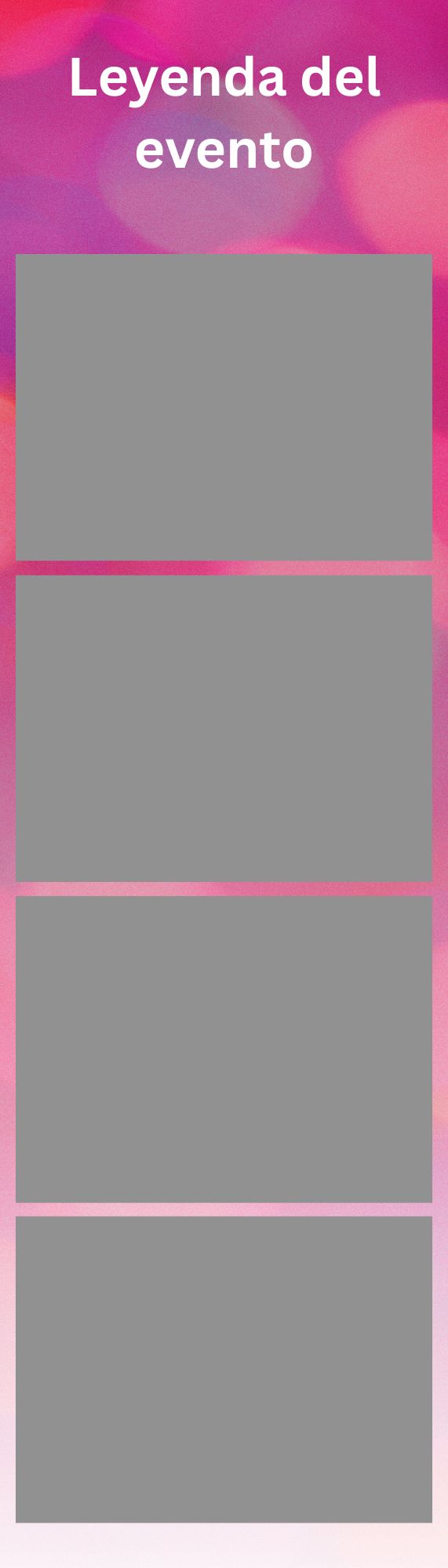
Cyan & Pink
Open in Canva →
Strip template 6
#6
Template 6
Open in Canva →
Strip template 7
#7
Template 7
Open in Canva →
Strip template 8
#8
Template 8
Open in Canva →
Strip template 9
#9
Template 9
Open in Canva →
5x7 template 1
#1
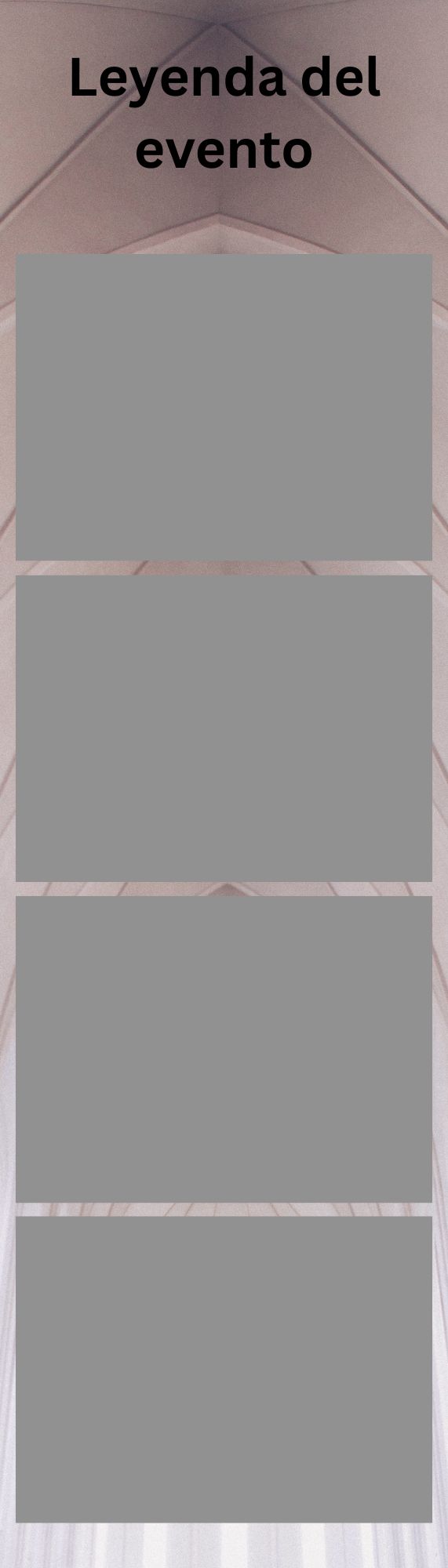
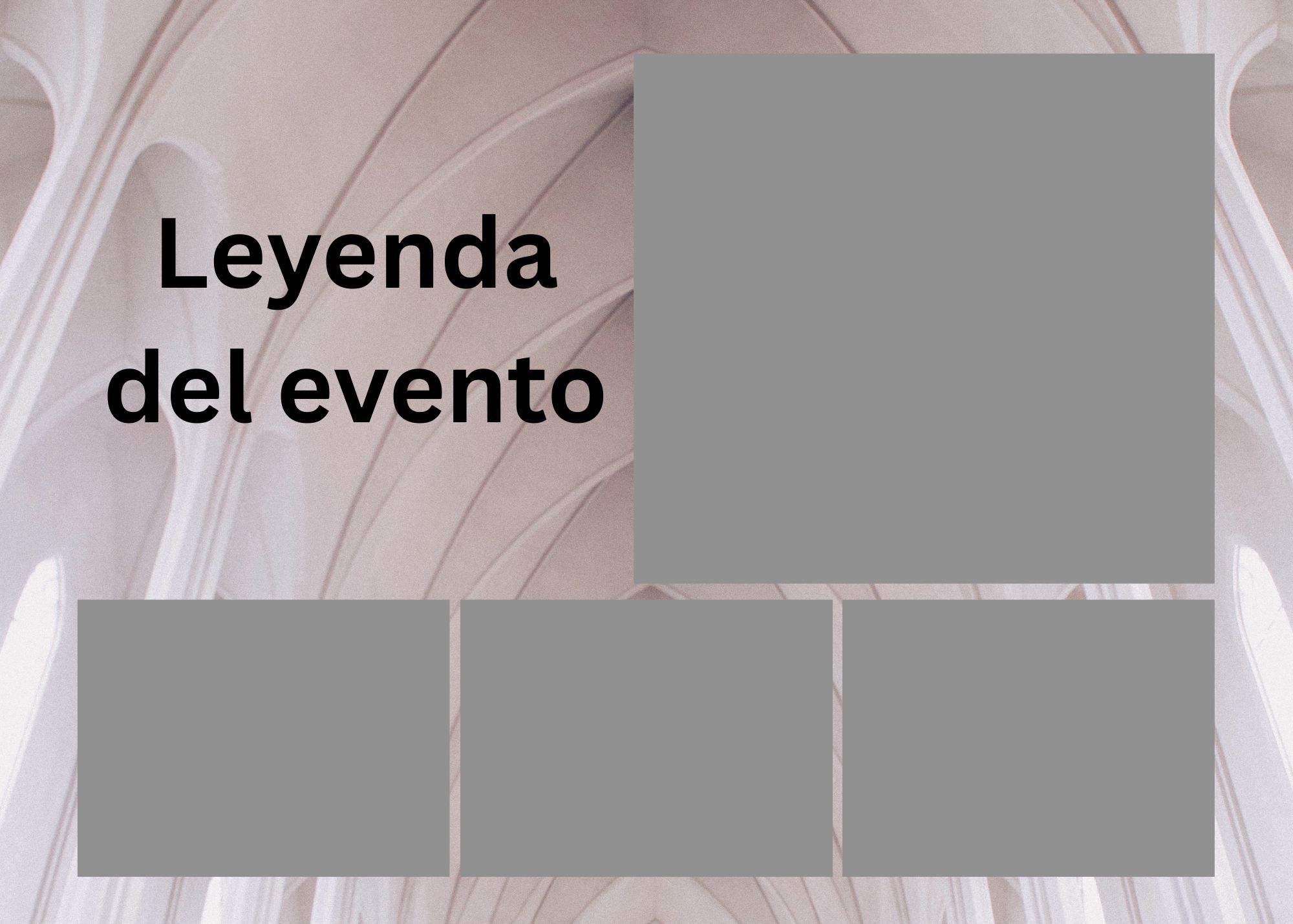
Church Arch
Open in Canva →
5x7 template 2
#2
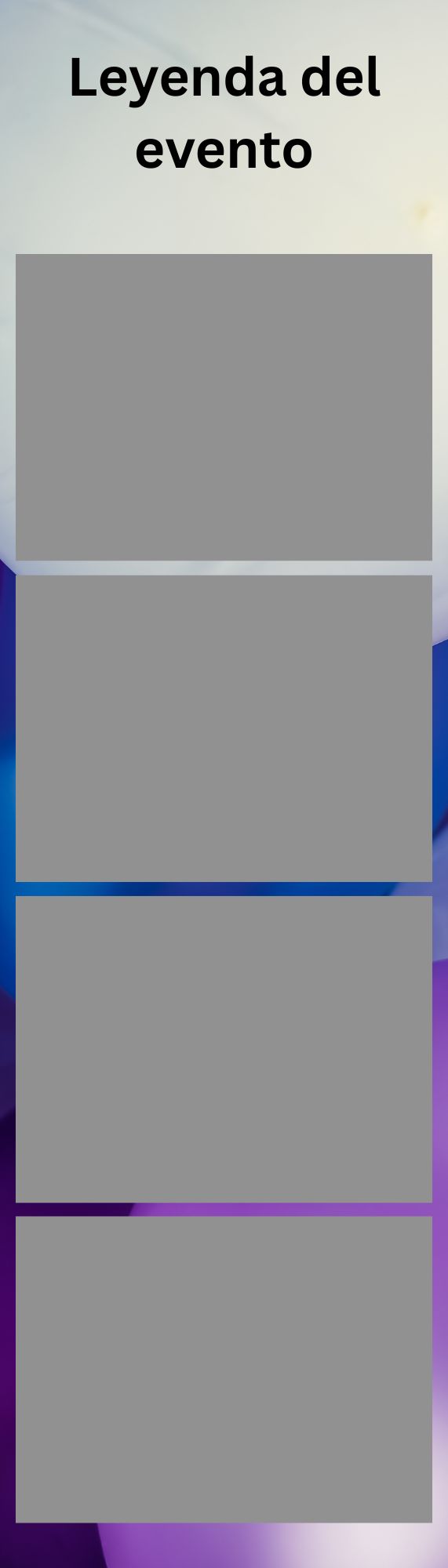
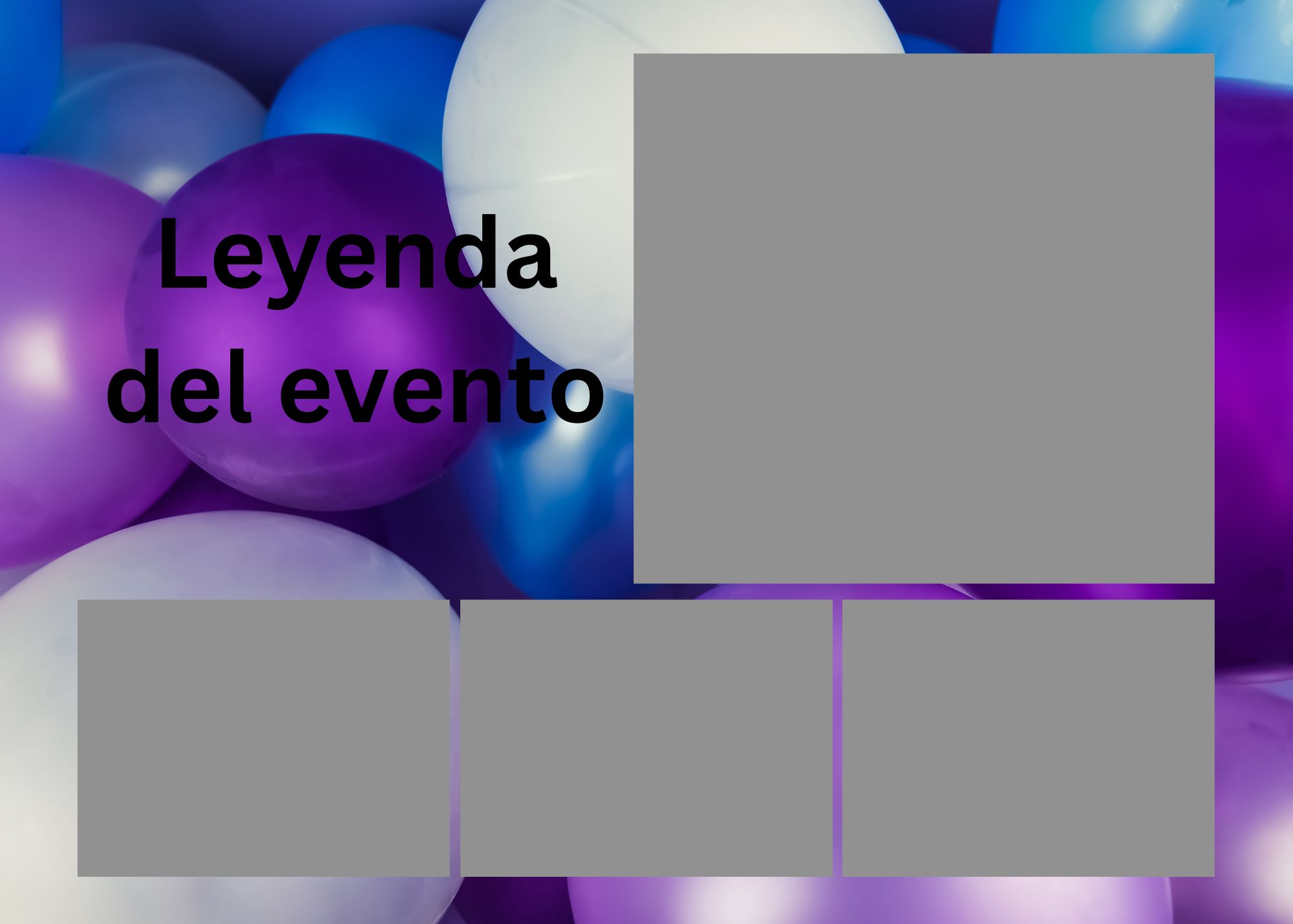
Purple Balloons
Open in Canva →
5x7 template 3
#3
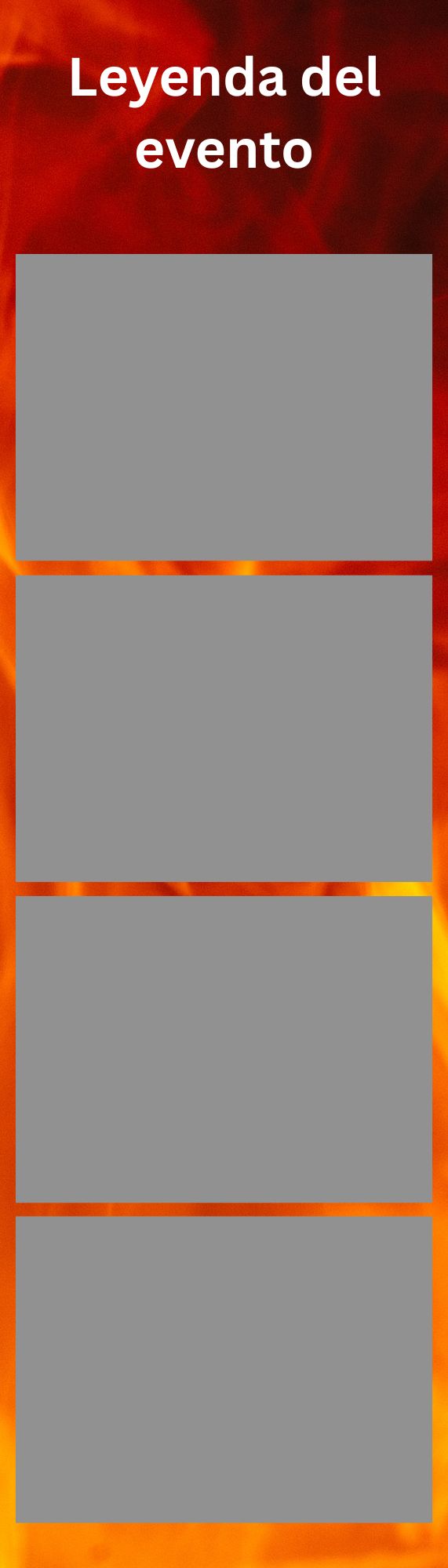
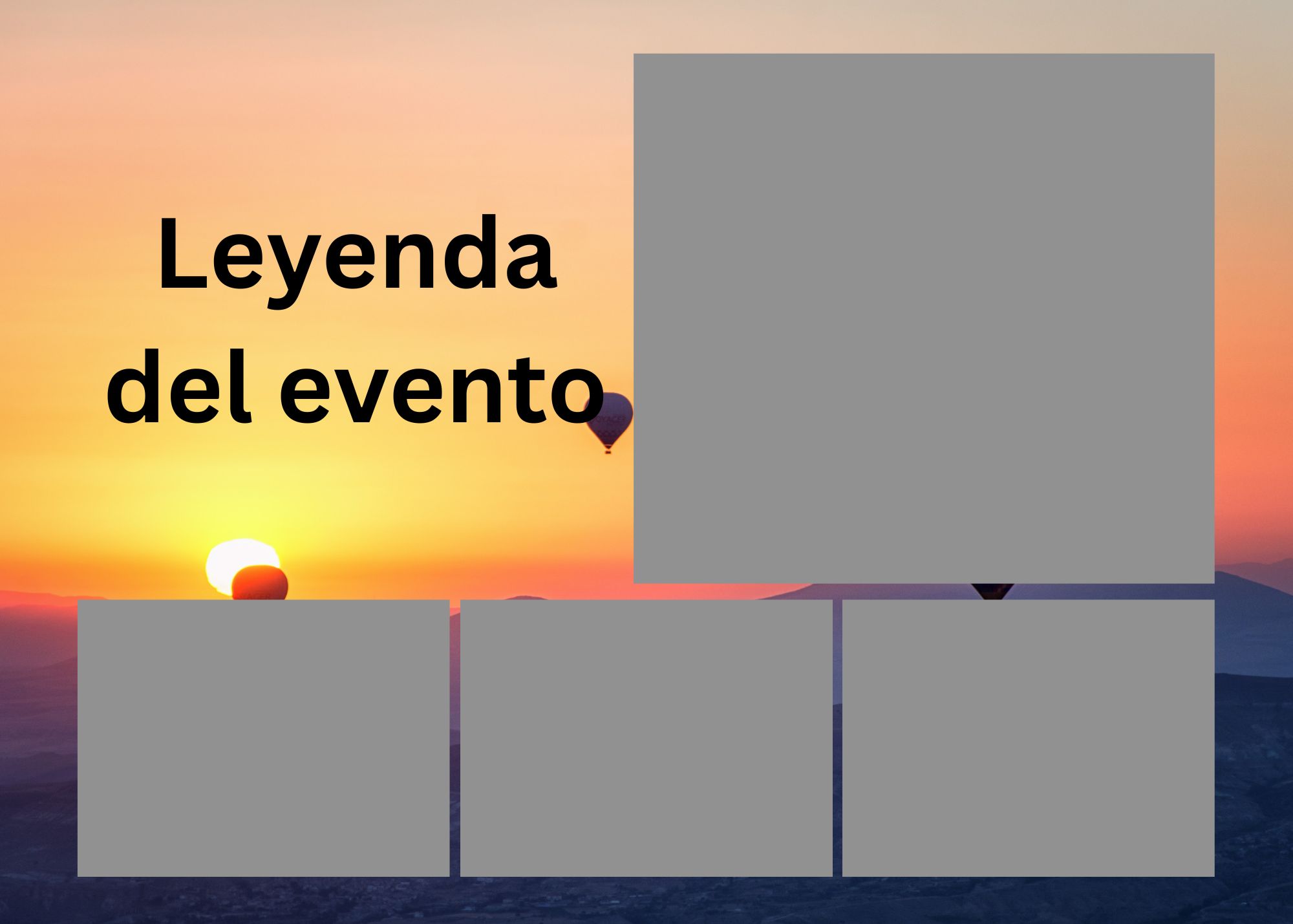
Sunset Balloons
Open in Canva →
5x7 template 4
#4
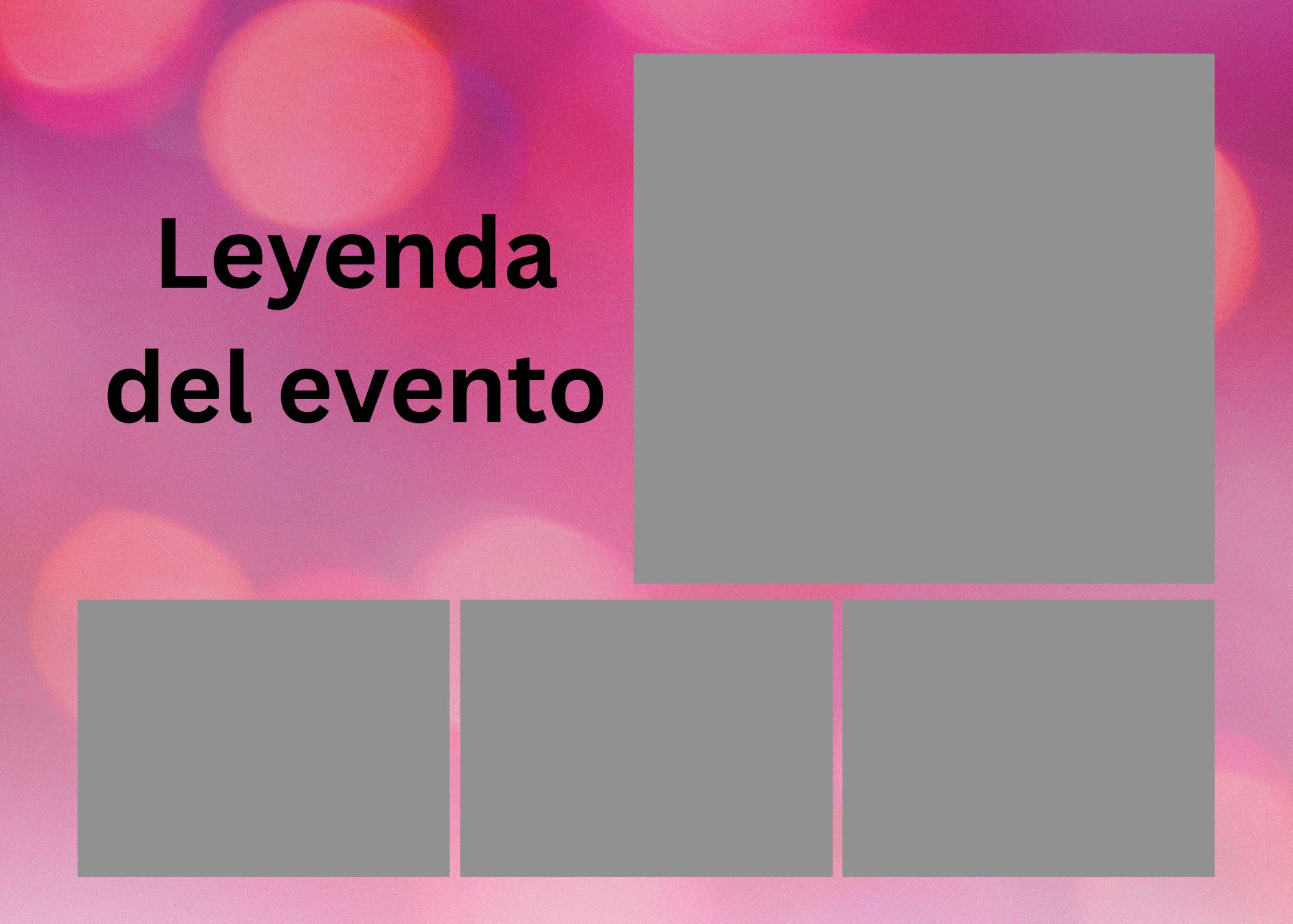
Pink Bokeh
Open in Canva →
5x7 template 5
#5
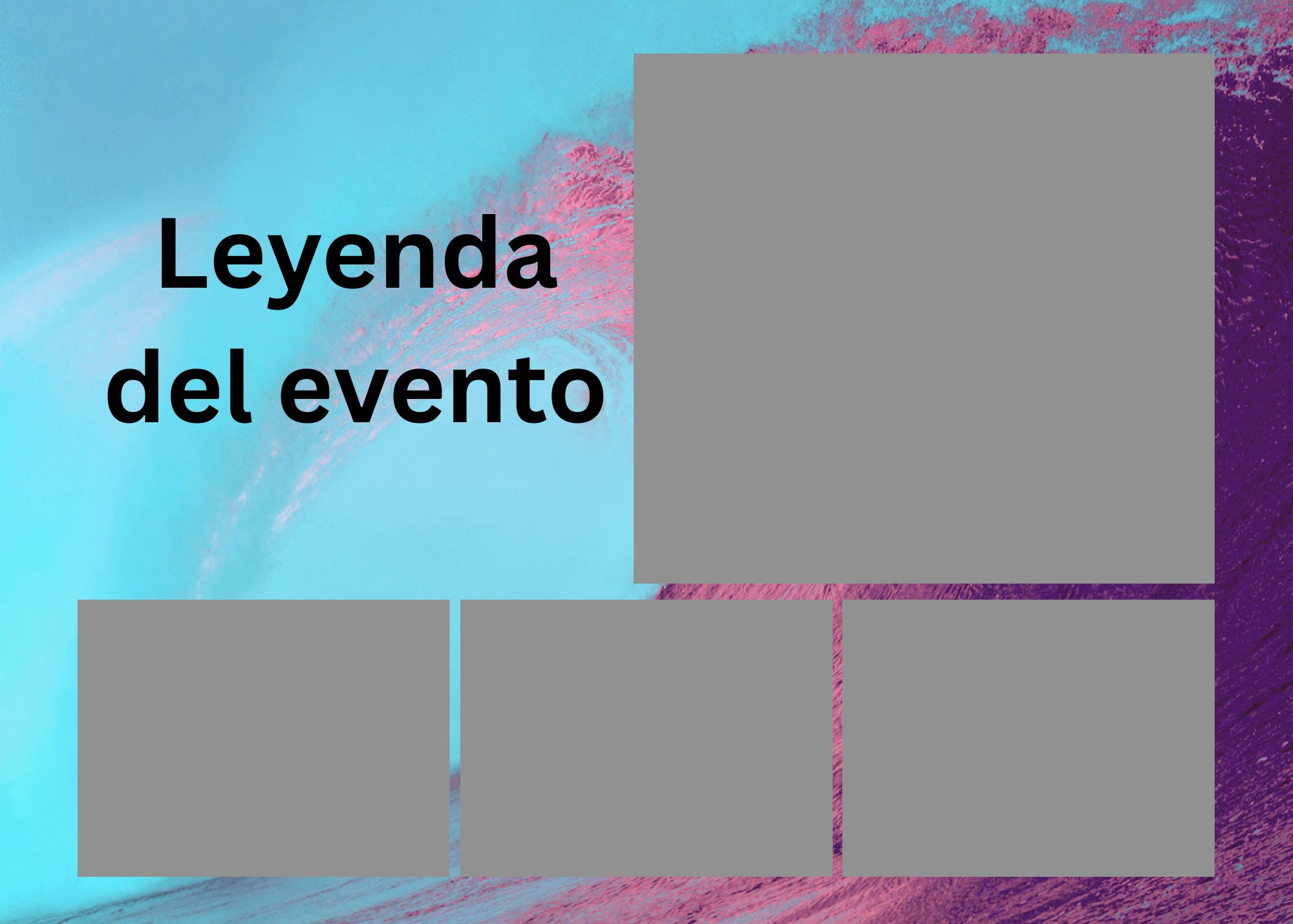
Cyan Wave
Open in Canva →
5x7 template 6
#6
Template 6
Open in Canva →
5x7 template 7
#7
Template 7
Open in Canva →
5x7 template 8
#8
Template 8
Open in Canva →
5x7 template 9
#9
Template 9
Open in Canva →
5x7 template 10
#10
Template 10
Open in Canva →
How to customize in Canva
1

Open the template

Click "Open in Canva →" on any template above. You'll be taken to Canva with a ready-to-edit copy. If you don't have an account, you can sign up for free.

💡 The copy is yours — the original template is never modified.
2

Change the background

Click on the background image → press Delete → click Background in the left panel to pick a new color, gradient, or upload your own photo. You can also use Canva's built-in photo library.

🖼️ Use a high-resolution image for best print quality.
3

Edit the legend text

Double-click the "Leyenda del evento" text box. You can change the font, size, color, and alignment — but do not delete the text element itself. The app will replace this placeholder with your actual event legend at render time.

✏️ Try to keep the legend text in the same area so it doesn't overlap the photo slots.
4

Style the photo frames (optional)

Click on any gray photo placeholder box. You can move it slightly, resize it proportionally, or add a border/shadow. Don't delete any of the 4 boxes — each one maps to one selfie taken during the photo booth session.

📐 Keep all 4 frames within the canvas boundaries or photos may get clipped.
5

Add decorations (optional)

Use Canva's Elements library to add flowers, confetti, lines, stickers, or your event logo. Layer them behind the photo frames so they don't cover the selfies.

6

Download as JPG

Click Share → Download. Choose JPG format. Make sure quality is set to the maximum. You don't need to export at 300dpi — the app handles resolution automatically.

📁 Name your file something clear, e.g. sofia-sweet16-background.jpg
7

Upload to your event

Go to My Photo Booth → Create Event → Collage Background. Click "Upload Background(s)" and select your exported JPG. Upload one file for a fixed background, or multiple files to let guests choose their favorite.

🎉 That's it! Your custom collage background is ready.

Ready to create your event?

Pick a template, make it yours, and set up your photo booth in minutes. Your guests will love it.